
A useful Shopify app audit connects each integration to its business purpose, the records it can access, the storefront behavior it supplies, and the person responsible for changes. Finish with a decision for each one: keep, investigate, or retire. The goal is a store you can account for, rather than a target number of apps.
If a shopper is currently reaching an unexpected payment page, use the checkout incident guide first. Contain that path and contact the response team; a complete inventory can wait.
Shopify’s documented controls checked on 18 October 2026.
Start an inventory you can finish
Use one row per integration, including tools that do not appear visibly on a page. Download the blank inventory CSV, or copy these fields into your usual spreadsheet:
- App or code source: exact name and developer, or where custom code is managed.
- Business purpose: what customers or the team need it to do.
- Data access: records it can view or edit, and relevant recent activity.
- Storefront contribution: blocks, embeds, scripts, tags, or remote settings.
- Change owner: who inside the business and which provider can change it.
- Dependencies: what stops working if it is disabled or removed.
- Decision and next action: keep, investigate, or retire; who acts and when.
- Removal and verification record: instructions, changes made, checks, and result.
Write “unknown—ask the provider” where needed. An unexplained field becomes a specific task; it does not silently become “no access” or “safe.”
Start with the integrations involved in product selection, cart behavior, checkout navigation, and customer information. Then work through the remainder. You can do this in passes without interrupting normal trading for an unrelated, symptom-free tool.
Read app access and activity in Shopify
Open Settings → Apps, then open an app’s details/about page. Shopify’s app-management documentation describes its activity and permissions view: the areas an app can view or edit, recent activity, and access not used in the preceding 30 days.
Compare that information with the job you expect the app to do. A mismatch deserves an explanation from the owner or provider. Access unused for 30 days may still serve an infrequent business process, so do not revoke it solely because the activity field is quiet.
Record extensions, functions, and pixel information shown for the app as well. These help identify how it participates in the store, but an admin activity view is not a complete record of everything a shopper’s browser executes.
If an integration is a sales channel rather than an app, look under Sales channels. Shopify’s removal guidance distinguishes those locations. Keep the inventory broader than the Apps list.
Look at what contributes code to the store
There are several places to inspect. They answer different questions.
| Place | What to record | What it does not establish by itself |
|---|---|---|
| Installed-app details | App/developer, data permissions, activity, extensions, and support route | The complete behavior of browser code |
| Theme app embeds and app blocks | Active components, the theme/market context, and what each supplies | That all of an app’s code is confined to this visible component |
| Theme additions and custom code | Who added it, what owns it now, and the removal instructions | That remote configuration and other integrations are unchanged |
| Tag managers and other script tools | Container/code owner, publishers, and the tags they deliver | That each delivered tool has a separate Shopify app entry |
| Provider dashboards/settings | Who can change them, what reaches the store, and how to disable it | That the theme file history records those changes |
For theme integrations, open Online Store, find the relevant theme, choose Edit theme, and inspect App embeds and the templates containing app blocks. Shopify’s theme-app guide explains that embeds can supply invisible code as well as visible elements. It also documents market-specific configurations; record which context you reviewed if your store uses them.
Do not toggle components just to see what breaks on the live store. Identify their job first. For uncertain behavior, ask the provider to describe the contribution and an appropriate way to check it.
Shopify’s theme-extension framework can add assets without directly editing theme files. That is why a clean theme diff is useful evidence about those files, but not a complete runtime inventory.
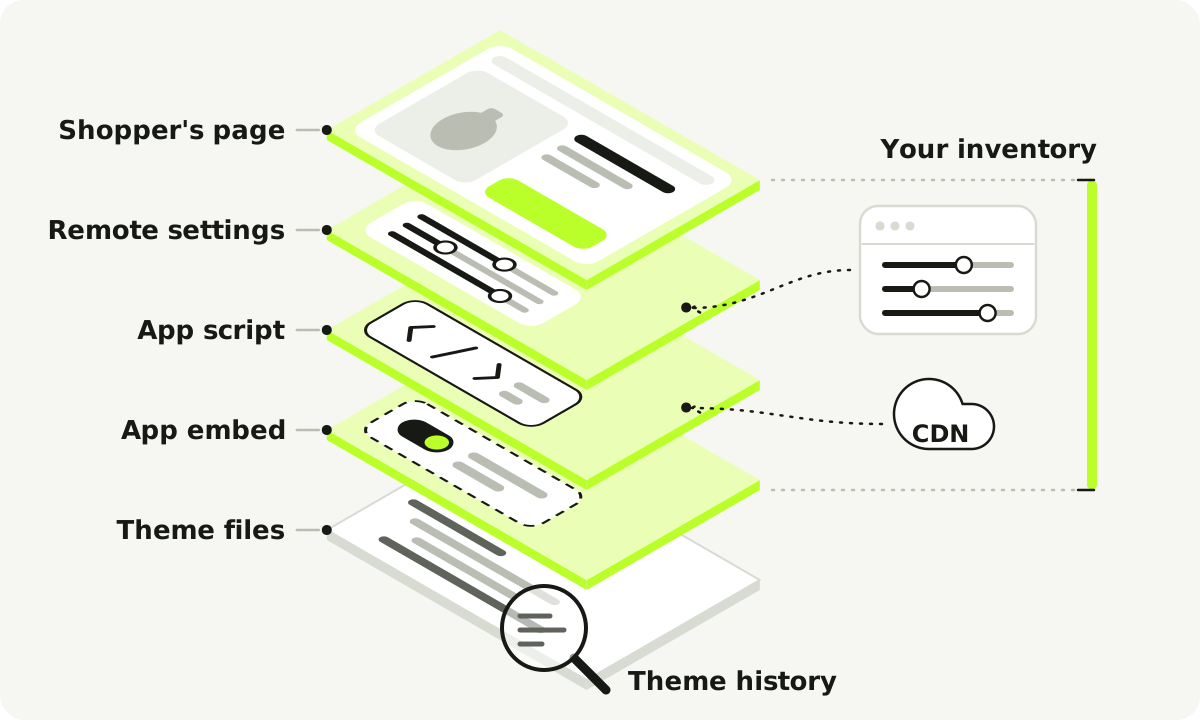
A conceptual delivery chain. Not every app uses every link.
Ask about change authority, not just permissions
An app might have limited API access while its browser code can still affect the shopping experience. Conversely, a back-office integration may need meaningful record access without placing a script on the store. Keep those cases separate.
For an integration that runs in the storefront, ask its developer:
- What does it load in the customer’s browser, and where does that come from?
- Can your service change that behavior remotely, including through settings?
- Can it affect product selection, cart actions, or navigation to payment?
- Which controls limit that behavior to its intended job?
- How can we disable it, and what needs checking afterward?
A business owner should not need to infer those answers from a minified script. Give the provider the exact feature and storefront surface you are trying to understand.
OWASP’s third-party JavaScript guidance explains the change-control problem behind those questions. A supplier’s delivered behavior can change after the original installation. “We tested it when we installed it” is an observation about that earlier state.
The documented checkout hijack shows why remote configuration belongs in the inventory. It does not mean every custom setting or remotely updated app is malicious.
Make a decision for each integration
Use these dispositions without inventing a security score:
| Decision | When it fits | The record you need |
|---|---|---|
| Keep | The job is needed, its owner and contributions are understood, and no identified issue requires removal | Purpose, dependencies, owner, and what should trigger another review |
| Investigate | The purpose, access, behavior, ownership, or provider response is unclear | A specific question, responsible person, and follow-up date |
| Retire | The job is no longer needed, duplicates another tool, or has an agreed replacement/removal plan | Provider instructions, data/workflow dependencies, and checks after removal |
“Keep” is an operating decision, not a security certification. If you observe an unsafe redirect or receive a store-specific incident notice, move to the response guide rather than leaving it in a routine review queue.
A fictional example: a small ceramics store
Suppose a store offers optional engraving, collects product reviews, and still has a banner from a finished campaign.
| Integration | What the review finds | Decision and next action |
|---|---|---|
| Engraving options | Needed for current products; contributes a product selector and cart line information | Keep; record the provider and test required choices after relevant changes |
| Review display | Useful, but nobody knows which dashboard controls its storefront script | Investigate; ask the internal owner/provider about delivery, publishing access, and disable steps |
| Finished-campaign banner | No current job; its embed and external subscription are still active | Retire; save needed campaign data, follow removal instructions, cancel the external subscription, and check affected templates |
The store retains a useful specialist feature and retires an unnecessary dependency. Counting how many apps remain would tell us less than that record does.
Remove an app without losing track of its work
For a routine retirement, use the following sequence. During a live incident, containment takes priority; coordinate evidence and cleanup with the response team.
1. Record what removal will affect
List the storefront behavior, business workflow, stored data, and billing it supplies. Examples include required product options, delivery logic, inventory locations, scheduled automation, and records held only by the app.
Shopify’s uninstall considerations explicitly cover dependencies, app-held data, external charges, and inventory at app locations. Export data you need and agree a replacement for essential work before routine removal. If the app manages an inventory location, follow the platform’s transfer/removal procedure rather than treating it as an ordinary display widget.
2. Obtain the developer’s removal instructions
Ask which embeds, blocks, theme additions, remote settings, or other connections need attention. Record the instructions and the person doing each part. Shopify warns that some apps leave code that is not automatically removed on uninstall.
For support, use Settings → Apps → the app’s menu → Get support, as described in Shopify’s support guide. If you cannot locate the listing or support control, use the developer’s official website or ask Shopify for assistance.
3. Make a theme copy before manual theme edits
Under Online Store, open the theme’s actions menu and choose Duplicate. Shopify’s theme-copy guide documents the action.
Use the copy to preserve a record and check ordinary edits before publishing. Label it with the date and purpose so someone does not later publish an old copy accidentally.
A theme copy is not a full-store backup and does not repair an app provider’s remote configuration. In a security incident, copying a theme may preserve the affected state; it does not make that copy clean. Avoid overwriting or publicly publishing an unreviewed copy during recovery.
4. Disable, uninstall, and remove documented remnants
Use the provider’s instructions to handle the relevant surfaces. Deactivating an app embed, removing a block, uninstalling the app, and removing manually inserted code are separate actions where applicable.
The documented desktop uninstall route is Settings → Apps → the app’s menu → Uninstall, followed by confirmation. Review any dependency/inventory prompts rather than clicking through them blindly. Official uninstall steps.
Remove only the theme additions identified in the cleanup instructions or reviewed by the responsible developer. A search for an app name is not a safe universal deletion rule: shared code or another feature can use similar names.
Cancel any subscription billed outside Shopify separately. Shopify’s documentation says uninstalling the app does not cancel those external charges. Keep billing follow-up separate from urgent security containment.
5. Validate the functions you affected
Use the app’s recorded job to choose checks. For the fictional engraving app, that means the product’s required choice, its display in the cart/order, and the intended purchase path—not only whether its button disappeared.
| Contribution removed or changed | Useful checks |
|---|---|
| Product selector/options | Required choices, variant/option information, quantity, and price |
| Cart or promotion behavior | Add, change, and remove items; inspect discount and total behavior |
| Navigation/purchase control | Product-to-cart and intended checkout destinations on the relevant routes |
| Tracking or display widget | Expected page behavior and remaining intended integrations |
| Operational integration | Replacement workflow, records, and responsibility for the next real task |
Include a phone and a relevant desktop browser where those are actual customer paths. Record the date, theme/context, actions taken, result, and remaining work. This verifies the change; past customer exposure is a separate question for the incident guide.
Keep a useful record of the next change
Review an integration again when its business purpose, requested access, delivery method, owner, or customer-facing behavior changes. A new script or vendor setting deserves a record even when no theme file changed.
Keep the inventory with the people who run the store. They should be able to answer “who owns this?” without starting another investigation from scratch.
We build Setka, where supported store code, integrations, and payment navigation remain under the platform’s controlled ownership. The merchant directs the store without inheriting a theme-code assembly to maintain. Our security-model deep dive explains that boundary; the Shopify alternative page helps assess the operating-model choice.
For now, choose one unknown entry in your own inventory and assign its next action. A completed decision on a real dependency is more useful than an unfinished spreadsheet of every tool you have ever installed.